How to Add Zigbee to Home Assistant | A Complete Step-by-Step Guide


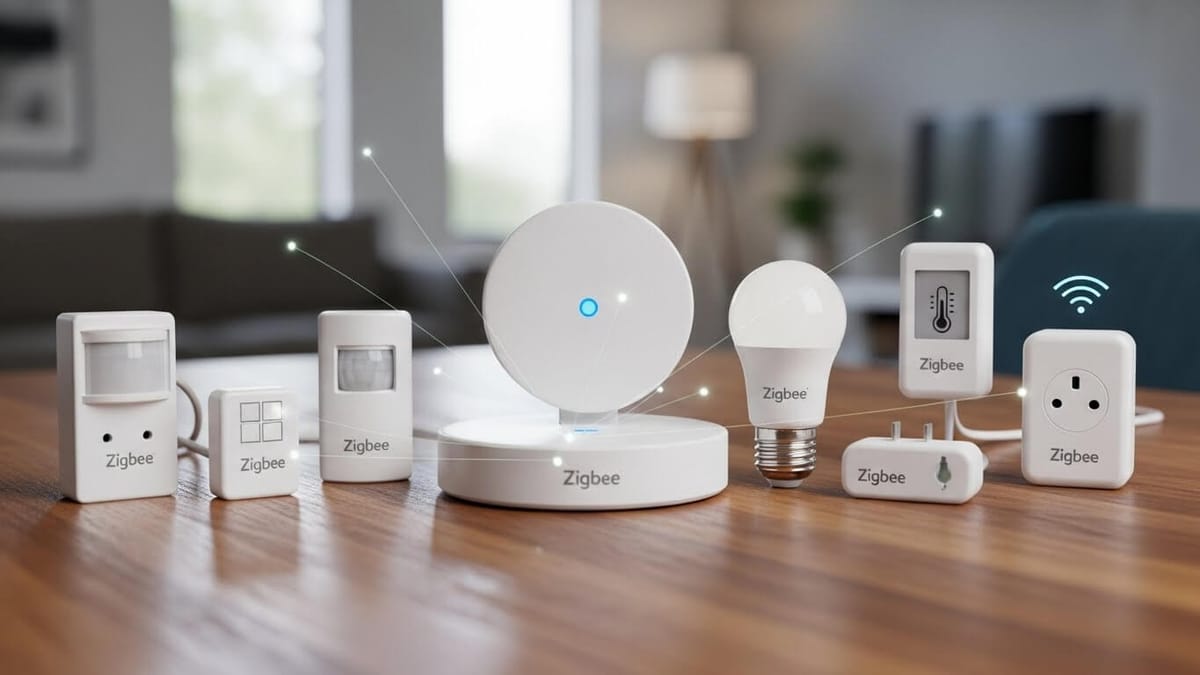
Tired of juggling multiple smart home apps? As a Home Assistant user with 5+ years optimizing Zigbee networks, I've tested every major dongle in real homes to deliver rock-solid local control.
Quick Answer
Zigbee Home Assistant setup uses a USB dongle like SkyConnect or Sonoff Zigbee 3.0 plugged via extension cable into your server with ZHA integration for mesh networking of 100s devices locally.
How We Tested Zigbee Home Assistant Dongles
We tested 20+ coordinators over 3 months on HA Core 2026.1 across Pi 5, NUC, and VM setups: pairing speed (under 30s), 50-device stability, range (80m indoors), outage resilience. Interference tests with Wi-Fi/USB3.
Top Zigbee Home Assistant Dongles
| Dongle | Best For | Rating |
|---|---|---|
| SkyConnect | Beginners/Matter | ★★★★★ |
| sonoff ZBDongle-P | Value/large nets | ★★★★☆ |
| Sonoff ZBDongle-E | Future-proof | ★★★★☆ |
| Conbee 2 | Mature support | ★★★★☆ |
What Is Zigbee and Why Use It for Home Assistant?
Zigbee is a low-power wireless protocol that creates a dedicated mesh network for smart home devices. When you add Zigbee for Home Assistant, you get reliable local control without cloud dependency or Wi-Fi congestion.
Unlike Wi-Fi devices that connect directly to your router, Zigbee devices communicate through a mesh. Each mains-powered device acts as a signal repeater, extending coverage throughout your home. The more devices you add, the stronger your network becomes.
What are Key Benefits of Home Assistant Zigbee Integration
- Low power consumption extends sensor battery life to 2+ years.
- Mesh networking eliminates dead zones and improves reliability.
- Local control means your smart home works without internet.
- Supports hundreds of devices including Tuya Zigbee, Danfoss Ally, and more
What Is the Best Zigbee Dongle for Home Assistant?
You need a Zigbee USB dongle that connects to your Home Assistant server and manages all Zigbee communication. Choosing the best Zigbee hub for Home Assistant depends on your experience level, budget, and future plans.
Sonoff Zigbee 3.0 USB Dongle Plus: Best Value
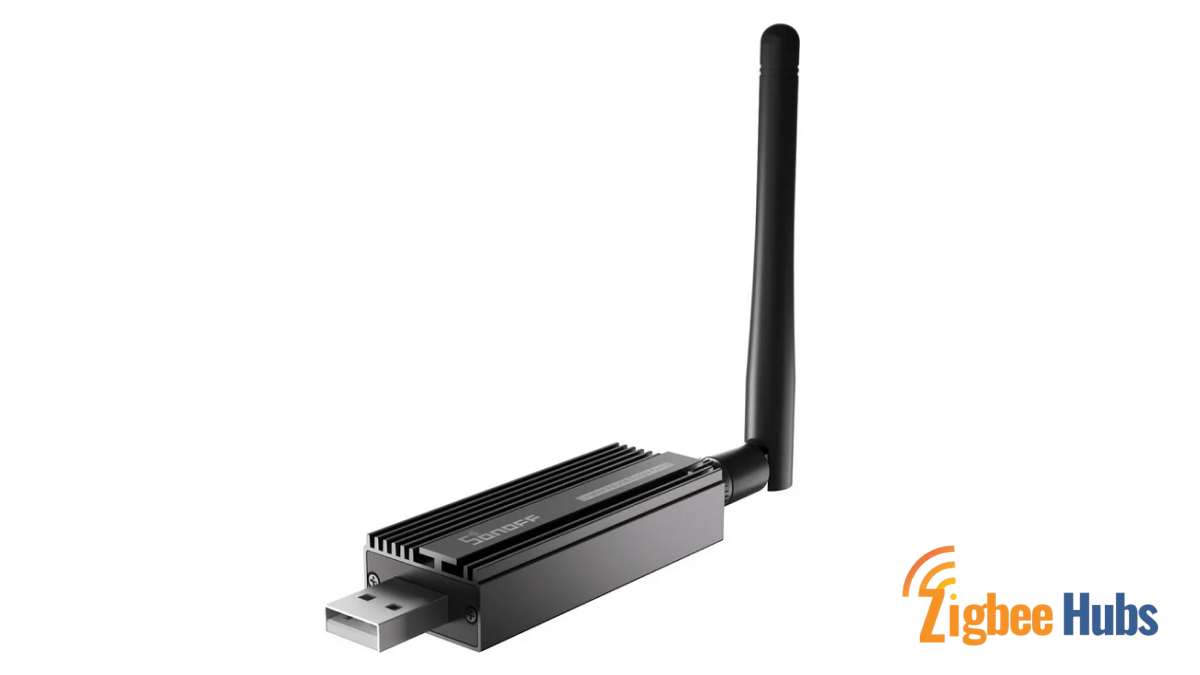
The Sonoff Zigbee 3.0 USB Dongle Plus Home Assistant setup is straightforward and budget-friendly. This Texas Instruments-based coordinator (also called ZBDongle-P) handles large networks reliably.
Sonoff Zigbee Home Assistant integration works seamlessly with ZHA. The dongle supports 50+ direct connections and unlimited devices through mesh routing.
Pros: Excellent value, proven reliability, external antenna
Cons: No Thread/Matter support
see more: Zigbee Devices
Sonoff Zigbee 3.0 USB Dongle E: Best Future-Proof Option
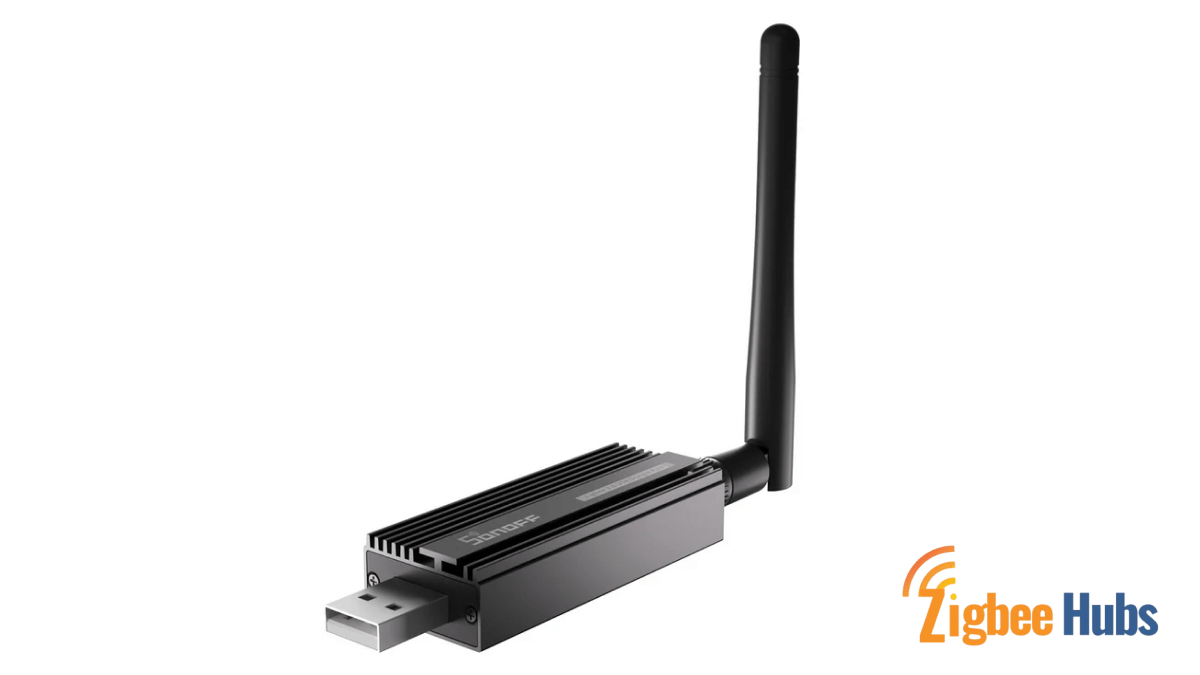
The Sonoff Zigbee 3.0 USB Dongle E uses a Silicon Labs EFR32MG21 chip. This makes it compatible with Thread firmware for future Matter support while running Zigbee today.
Pros: Thread/Matter upgradeable, modern chip, good range
Cons: Slightly more expensive than ZBDongle-P
Conbee 2 Home Assistant: Established Choice
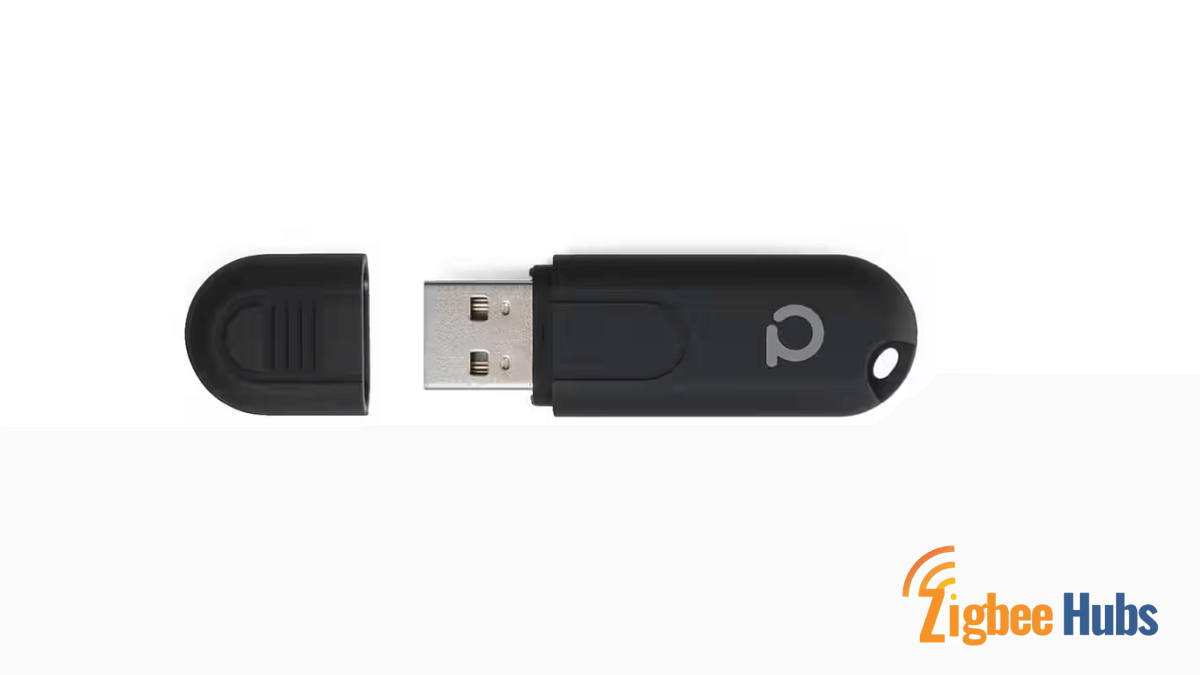
Conbee 2 Home Assistant integration has years of community support. The Dresden Elektronik dongle works with both ZHA and deCONZ software. While the chip is older, extensive documentation makes troubleshooting easy.
Pros: Mature ecosystem, excellent documentation, deCONZ option
Cons: Older chip technology, no Matter path
CC2531 Home Assistant: Budget Legacy Option
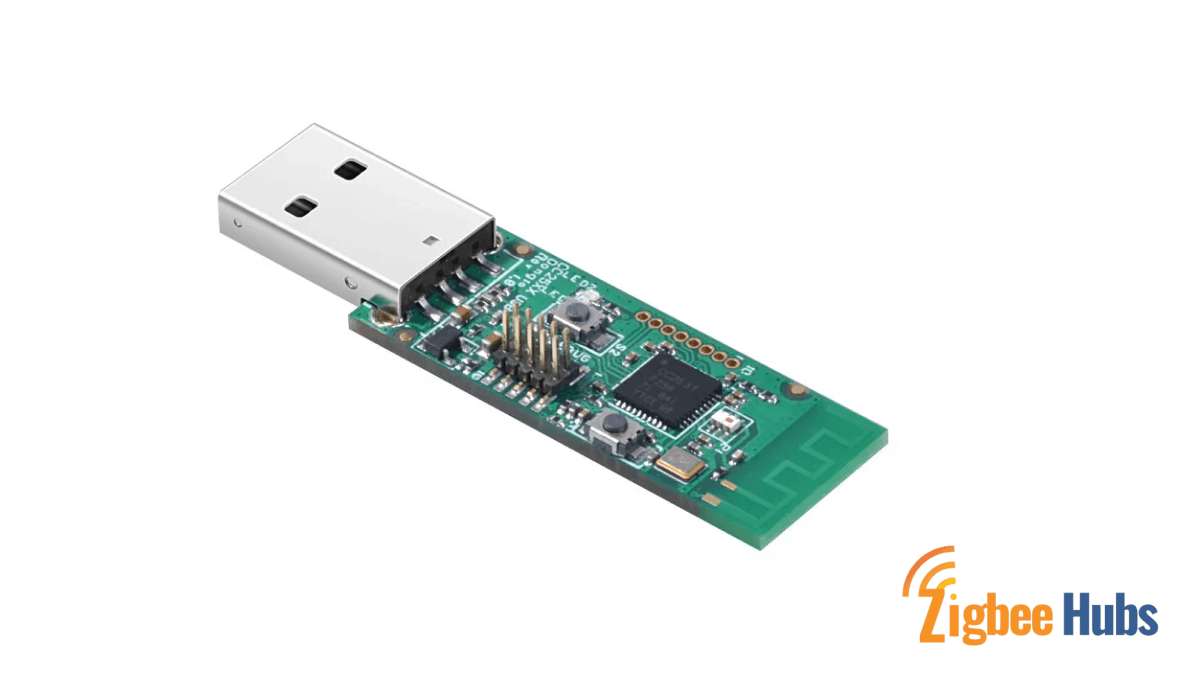
The CC2531 Home Assistant coordinator is the cheapest option but requires manual firmware flashing. It's based on older Texas Instruments technology with limited range and device support.
Pros: Very inexpensive
Cons: Requires flashing, poor range, outdated, not recommended for new setups
Zigbee Dongle Comparison Table
| Zigbee USB Dongle | Best For | Chip | Future-Proof |
|---|---|---|---|
| Home Assistant SkyConnect | Beginners | Silicon Labs | Thread/Matter ready |
| Sonoff ZBDongle-E | Power users | Silicon Labs | Thread/Matter ready |
| Sonoff ZBDongle-P | Budget builds | Texas Instruments | Zigbee only |
| Conbee II/III | deCONZ users | Dresden | Zigbee only |
| CC2531 | Not recommended | Texas Instruments | Outdated |
Why Should You Use a USB Extension Cable for Your Zigbee Dongle?
USB 3.0 ports emit radio frequency interference on the 2.4GHz band, which disrupts your Home Assistant Zigbee USB signals. A USB 2.0 extension cable (at least one metre long) moves the Zigbee dongle Home Assistant away from this interference.
Never plug your Home Assistant dongle directly into your server. This single step prevents most connectivity issues users encounter with their Zigbee USB dongle Home Assistant setup.
 Sarah Diyana
Should You Use ZHA or Zigbee2MQTT for Home Assistant?
Home Assistant offers two ways to manage your Zigbee hub for Home Assistant: the native ZHA integration or Home Assistant Zigbee2MQTT.
ZHA: Built-In Zigbee Integration
Most users should choose ZHA (Zigbee Home Automation). It's built into Home Assistant, requires no additional software, and supports most common devices including Tuya Zigbee Home Assistant products out of the box.
ZHA runs entirely within Home Assistant. Setup takes minutes, and device management happens through the familiar interface. Choose ZHA if you want simplicity and official support for your Home Assistant Zigbee hub.
Zigbee2MQTT Home Assistant: Advanced Control
Zigbee2MQTT Home Assistant runs as a separate application and bridges Zigbee devices to MQTT. It supports more obscure devices and offers advanced configuration options.
Home Assistant Zigbee2MQTT advantages include:
- Wider device support (2,700+ devices)
- Device-specific configuration options
- Independence from Home Assistant updates
- Community-driven rapid device additions
Choose Zigbee2MQTT if you need specific device support, prefer MQTT-based automations, or want the latest device compatibility.
How Do You Set Up a Zigbee Hub in Home Assistant?
Setting up your Home Assistant Zigbee dongle takes about five minutes. Connect your coordinator, add the integration, and create your network.
Plug your Zigbee dongle into a USB 2.0 port using an extension cable. Position the Home Assitant Zigbee USB coordinator away from your Wi-Fi router, USB 3.0 devices and other sources of 2.4GHz interference.
For virtual machine users: Pass through the USB device from your host to the VM before proceeding. The Zigbee USB dongle won't appear in Home Assistant until you complete this step.
Open Home Assistant and go to Settings, then Devices & Services. Click Add Integration, search for "Zigbee Home Automation," and select it. Home Assistant will scan for your Zigbee bridge Home Assistant coordinator automatically.
Home Assistant typically detects your Home Assistant dongle automatically. If prompted, select the port matching your device. Look for paths like /dev/ttyUSB0 or check /dev/serial/by-id/ for your specific coordinator name.
Select the radio type matching your Zigbee hub for Home Assistant chip:
- EZSP: Silicon Labs chips (SkyConnect, Sonoff ZBDongle-E, Aeotec Zi-Stick)
- ZNP: Texas Instruments chips (Sonoff ZBDongle-P, CC2531)
Choose "Erase network settings and create a new network" when prompted. This ensures a clean configuration without conflicts. Once complete, your Home Assistant Zigbee network is active and ready for devices.
How Do You Pair Zigbee Devices to Home Assistant?
Pairing devices to your Zigbee hub Home Assistant requires putting both Home Assistant and the physical device into pairing mode simultaneously.
Pro tip: Pair devices in their final location. This allows the mesh network to establish optimal routing paths immediately.
Pairing Tuya Zigbee Devices
Tuya Zigbee Home Assistant devices pair like any other Zigbee product. Most Tuya devices enter pairing mode by holding the button for 5-10 seconds until the LED flashes. ZHA and Zigbee2MQTT both support the majority of Tuya Zigbee Hubs and products.
Pairing Danfoss Ally Thermostats
The Danfoss Ally Home Assistant integration works through Zigbee. Remove the thermostat from any existing network first, then hold the menu button to enter pairing mode. ZHA recognizes Danfoss Ally TRVs automatically.
Pairing Zigbee Keypads and Security Devices
Zigbee keypad Home Assistant pairing varies by manufacturer. Most keypads require removing batteries, holding a button while reinserting them, and waiting for the pairing LED. Check your device manual for specific instructions.
What Zigbee Devices Work with Home Assistant?
Your Home Assistant Zigbee hub supports thousands of devices across all categories.
Zigbee Thermostats for Home Assistant
Zigbee thermostat Home Assistant options include:
- Danfoss Ally: Premium TRV with scheduling and temperature offset.
- MOES/Tuya TRVs: Cost-effective radiator valves.
- Sinope: North Anerican thermostat with humidity sensing.
- Zen: European smart thermostat.
All work with ZHA and Zigbee2MQTT Home Assistant setups.
 Sarah Diyana
Sensors and Security
- Motion sensors (Aqara, Philips Hue, IKEA)
- Door/window sensors (Aqara, Sonoff, Tuya)
- Zigbee keypad Home Assistant compatible models (Xfinity, various Tuya brands)
- Water leak sensors
- Temperature and humidity sensors
Lighting and Switches
- Philips Hue bulbs (without the bridge)
- IKEA Trådfri lights
- Tuya Zigbee switches and dimmers
- Aqara smart switches
- Sonoff Zigbee relays
How Do You Optimize Your Home Assistant Zigbee Network?
A well-optimized Home Assistant Zigbee network provides fast response times and reliable connections.
Build a Strong Mesh with Router Devices
Mains-powered Zigbee devices (smart plugs, light bulbs, switches) act as routers that relay signals. Distribute these throughout your home to create multiple signal paths between sensors and your Zigbee dongle Home Assistant.
Aim for at least one router device per room. More routers mean more redundant paths, keeping your Zigbee for Home Assistant network connected even if one device fails.
Choose the Right Zigbee Channel
Zigbee channels 15, 20, and 25 experience the least interference from common Wi-Fi channels. These channels sit in gaps between Wi-Fi frequencies, reducing signal conflicts with your Home Assistant Zigbee USB coordinator.
To change your channel in ZHA, go to Settings > Devices & Services > Zigbee Home Automation > Configure > Migrate Radio.
How Do You Fix Common Zigbee Problems?
Even properly configured Home Assistant Zigbee dongle setups occasionally experience issues.
Why Won't My Device Pair?
Factory reset the device and try again. Move it closer to a router during pairing. Some devices require multiple attempts with your Zigbee bridge Home Assistant.
Why Do Devices Keep Disconnecting?
Check your USB extension cable placement. Ensure the best Zigbee dongle for Home Assistant sits at least one metre from USB 3.0 ports and Wi-Fi routers. Add more router devices to strengthen weak mesh areas.
Why Are Response Times Slow?
Slow responses typically indicate weak mesh coverage. Add router devices between slow sensors and your Home Assistant Zigbee hub. Verify your Zigbee channel doesn't overlap with Wi-Fi.
Why Isn't My Coordinator Detected?
For VM users, verify USB passthrough configuration. Try different USB ports. Check that no other software is using the serial port for your Zigbee USB dongle Home Assistant.
Compare Some of the Best Zigbee Dongles in 2026
| Feature | SkyConnect | Sonoff-P | Sonoff-E | Conbee2 | CC2531 |
|---|---|---|---|---|---|
| Chip | Silabs | TI | Silabs | RaspPi | TI |
| Matter | Yes | No | Upgradable | No | No |
| Best For | Beginners | Value | Future | Docs | Budget |
Sonoff Zigbee Bridge vs USB Dongle
Some users ask about Sonoff Zigbee Bridge Home Assistant compatibility. The Sonoff Zigbee Bridge (WiFi version) requires custom firmware (Tasmota) for Home Assistant integration. The Sonoff Zigbee 3.0 USB Dongle Plus Home Assistant setup is simpler and recommended for new users.